> For the complete documentation index, see [llms.txt](https://docs.d5render.com/llms.txt). Markdown versions of documentation pages are available by appending `.md` to page URLs; this page is available as [Markdown](https://docs.d5render.com/instruction-for-d5-for-teams/how-to-use-multi-editing/assigning-worksets.md).
# Assigning Worksets
### Introduction to the Assignment Window
The **Assign Workset** window uses a two-column layout. The left pane displays the Workset List, while the right pane shows the full Scene Asset List.
| Region | Description |
| ---------------------------------------------------------------- | ---------------------------------------------------------------------------------------------------------------------------------------------------------- |
|
Left - Workset List
| Displays all created worksets (including default and custom ones).Allows you to add, rename, and delete worksets. |
|
Right - Asset List
| Displays all scene assets within the project.Each asset has a dropdown menu on its right side, allowing you to instantly change the workset it belongs to. |
### Modifying Asset Ownership
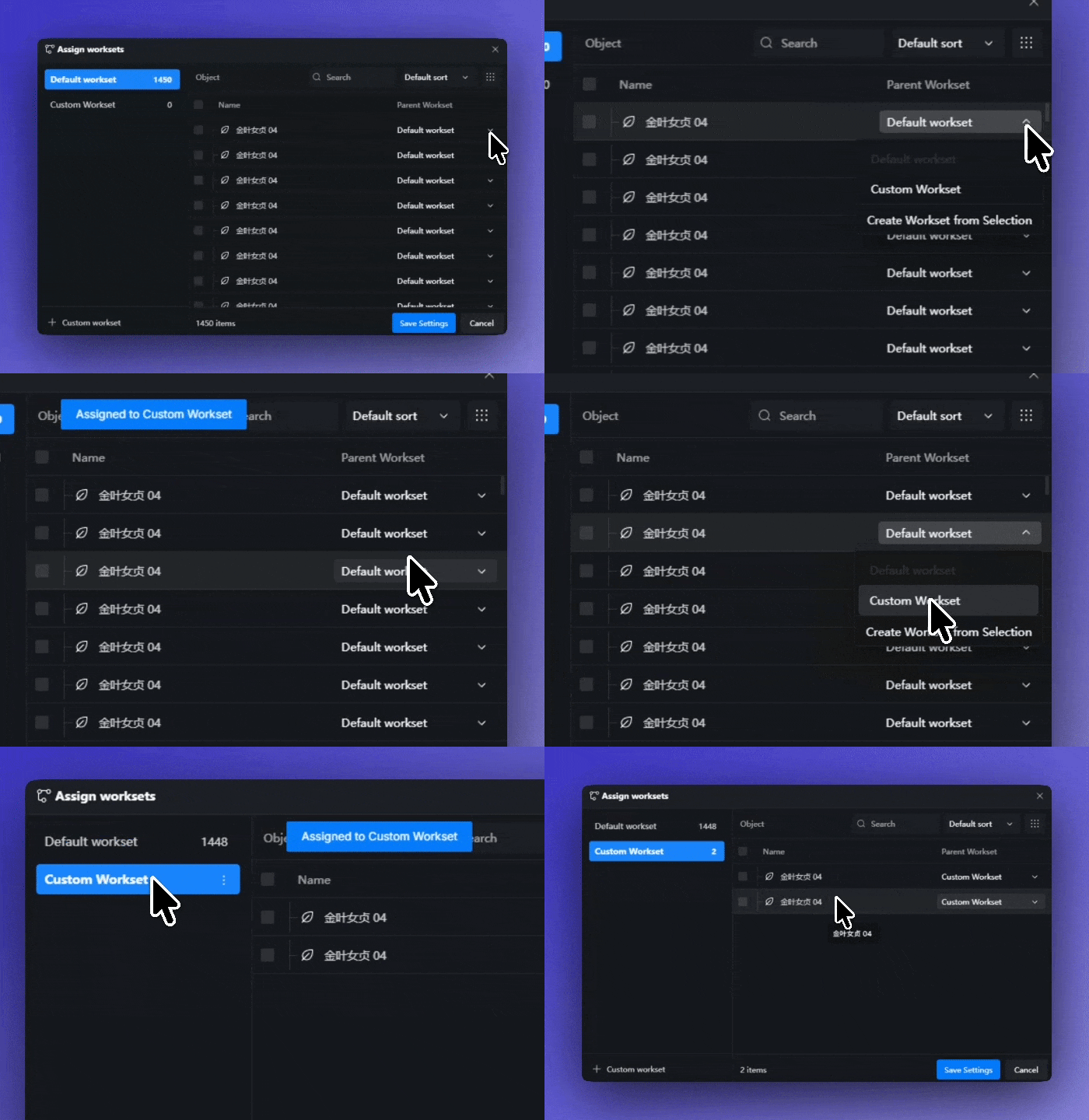
Each scene asset features a **workset assignment dropdown** on its right. Click it to switch which workset owns that asset.
1. Locate the scene asset you want to adjust in the right-side asset list.
2. Click the workset assignment dropdown to the right of the asset.
3. Select your target workset from the dropdown list.
4. The asset’s ownership will update instantly, allowing you to preview the changes in real-time.
{% hint style="info" %}
**Note:** Adjusting assignments will not affect the live project during this stage. All modifications only take effect after you click **"Save Settings"** and pass the system validation.
{% endhint %}
### Bulk Assignment and Drag-and-Drop
To speed up your workflow, the system supports both **bulk selection** and **drag-and-drop assignments**.
#### Bulk Assignment:
1. Select multiple assets via the checkboxes in the asset list.
2. Once selected, you can assign all of them to a specific workset simultaneously or create a new workset directly from the selection.
3. It supports selecting all assets or selecting by group for rapid bulk allocation.
#### **Drag-and-Drop Assignment:**
1. Select one or more assets in the right pane
2. Drag and drop them onto a target workset in the left pane.
3. Release the mouse to complete the assignment. You can also drag them to an empty area to create a new workset instantly.
Creating New Custom WorksetsBeyond the system-generated default worksets, you can create custom worksets tailored to your team's division of labor.
1. Click **"+ Add Custom Workset"** at the bottom of the left workset list.
2. In the pop-up dialog, enter a name for the workset (e.g., "Landscape", "Interior", "Lighting").
3. Click confirm to create it.
4. Allocate assets from the right-side asset list into your newly created custom workset.
{% hint style="info" %}
**Note:** Custom worksets can be renamed and deleted at any time, but the very first *Default Workset* cannot be deleted.
{% endhint %}
### Terrain Tools and Worksets
Terrain-related tools (Terrain, Ocean, Cesium) have specific global restrictions when working with worksets:
| Tool | Global Quantity Limit | Assignable to a Workset? |
| ----------- | --------------------- | ------------------------ |
| **Terrain** | Max 1 | Yes |
| **Ocean** | Max 1 | Yes |
| **City** | Multiple Allowed | Yes |
| **Cesium** | Max 1 | Yes |
{% hint style="info" %}
**Note:** Terrain, Ocean, and Cesium objects are limited to a maximum of one per project globally. If an asset of this type already exists in any workset, other worksets will receive a prompt/warning if they attempt to create another one.
{% endhint %}