> For the complete documentation index, see [llms.txt](https://docs.d5render.com/llms.txt). Markdown versions of documentation pages are available by appending `.md` to page URLs; this page is available as [Markdown](https://docs.d5render.com/instruction-for-d5-for-teams/how-to-use-multi-editing/convert-projects-to-worksets.md).
# Convert projects to Worksets
1. After opening a scene file from the team project library, you can select "File" >> "Convert to a Multi-editor Project" from the menu.
D5 Render will automatically classify all models in the scene file into the "Default Workset". You can create custom worksets based on your project requirements and rename them, such as "Landscape", "Architecture", "Interior", etc.
2. In the "Assign Worksets" window, you can assign default workset's contents to custom worksets. Once the assignment is complete, click "Save & Convert project".
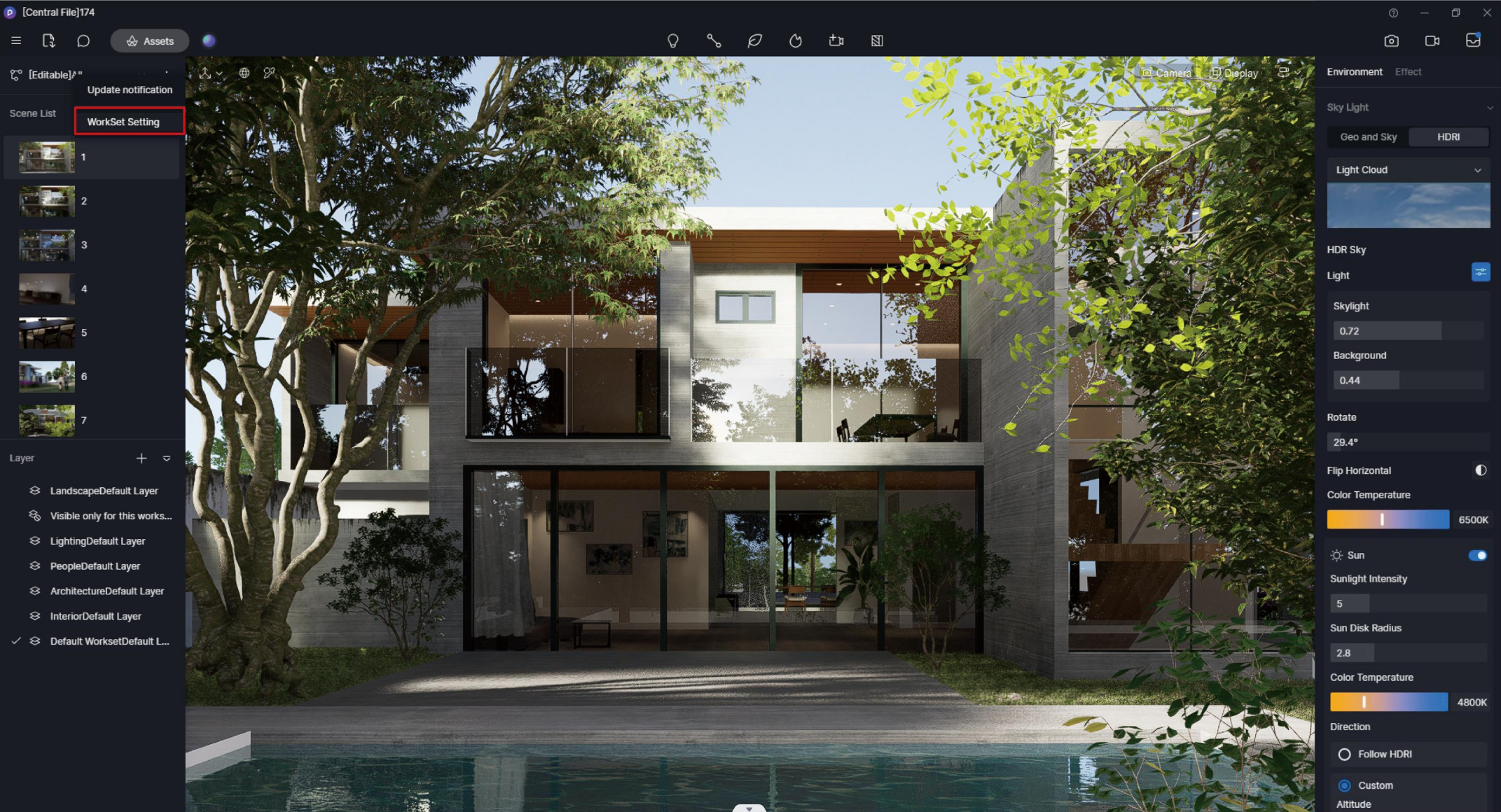
3. After saving, you'll find more information about the worksets in the upper-left corner of the interface, and you can switch between different worksets. Once the workset assignment is complete, the central file will be in editing mode.
4. When the central file is open, other members of the team who try to open the multi-editor project will see the prompt - "The central file is in editing."
Once you exit the central file, other team members can enter different worksets simultaneously.
Open the central file to check and edit assets in all worksets, or make adjustments in time.