D5 Render Tour Editor
You can find the corresponding virtual tour files within the D5 Showreel in MySpace, and click 'Edit' to enter the Panorama Editor.
After uploading a virtual tour to D5 Showreel, you can make further editings to the virtual tour using D5 Panorama Editor.
Any member of the team can upload a virtual tour file to the corresponding cloud project. Please note that virtual tour cannot be edited by different members simultaneously. When one person is editing the virtual tour, the project will be locked.

Global Settings
Global settings affect the presentation of all panoramas in a virtual tour.
Project information:
The project information contains the 'project name' and 'project introduction'. When visiting the virtual tour, viewers can check its detailed info in the upper left corner. For now, links cannot be added into the project introduction.

Rotation setting:
When auto-rotation is enabled, you can set the 'Starting Delay' and 'Speed'.
Music setting:
When 'Autoplay' is enabled, the virtual tour link you share will automatically play music upon opening. The tracks we provide on D5 Panorama Editor all have commercial licenses.
Opening setting
When opening animation is enabled, an animation will automatically play when entering the first viewpoint of the virtual tour.
Camera Settings
Camera settings control the display of a single panorama. Different panoramas within a virtual tour can have independent camera settings.
Field of View (FOV) Range:
Controls the adjustable FOV range and initial default values for the panorama.
Rotatable direction:
Users have control to disable rotation of the panorama in a certain direction.
Hotspot Settings
In Hotspot Settings, users can add customized hotspots to the scene, and the following types of hotspots are currently supported.

Anchor Hotspot
Bind a panorama scene in the current panorama tour sequence. Click on the type of Hotspot will jump to another panorama scene.
Rich Media Hotspot
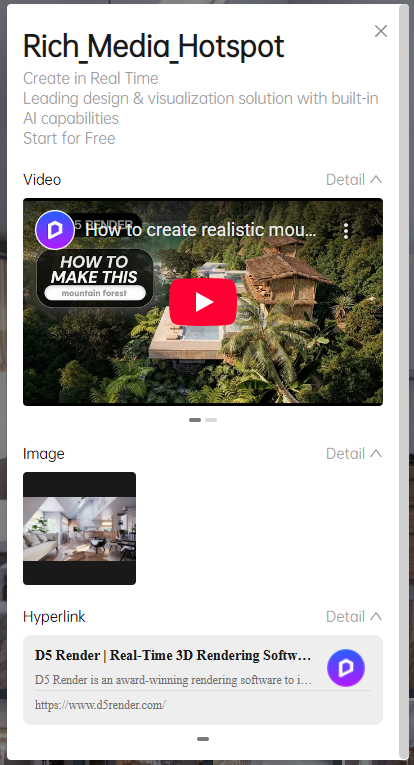
Support editing a rich text, users can add images, videos and hyperlinks. After clicking this type of hotspot, a pop-up window will be opened.
Anchor Hotspot
After adding a hotspot to a position in the scene, select the scene to jump

After the addition is completed, click the icon in the preview to jump.
Rich Media Hotspot


Pop-up Content
Video: You need to add the iframe link to the video. Select "Share" on the video website and click "Embed Code" to get the iframe link of the video.
Images: Up to 20 photos can be added, up to 100MB per photo. Supported formats: JPG, JPEG, GIF, PNG, WebP, BMP
Hyperlink: Supports entering a valid URL beginning with http/https
Text: Support free input plain text (Chinese and English, numbers, symbols and other conventional characters),Support for pasting text. Upper text limit: 1000.
Hotspot Settings
Hotspot size: Slide to adjust the size of the hotspot icon in the scene
Offset Position: Hotspots can only be adsorbed on the surface of the object in spacial tours, and the offset position can be used to adjust the hotspot position in the x, y and z directions.
Hotspot style Normal direction: I .e. the direction of the surface of the object - Self rotation: Enter a value to change the icon direction - Face the screen: The icon is facing the screen. Spatial tour defaults to normal. Panoramic tour defaults to face the screen and cannot be adjusted.
Hotspot Image: Provides a variety of static and dynamic icons for choice.
After editing, click Back to save automatically. After adding, click the preview button at the bottom of the lower right corner of the edit bar to open the pop-up window to view the effect. Click the icon in the preview to open the pop-up window.

Share Settings
In the share settings, the user sets access permissions for a panorama's sharing link.
Enable sharing
When you turn off shared links, users can no longer access your designs from shared links. Normal access is available after re-enabling.
External access restriction
By default, all people who own the link can access
It Support setting a 4-digit access password
Share expiration date
No expiration date by default
After setting the expiration date, non-external sharing of panorama links will be closed automatically after the expiration date.
Enable watermark
No watermark by default
When enabled, it supports setting text watermark to protect your work.
Floor Plan Navigation
In Floor Plan Navigation, users can upload a png or jpg floor plan as a navigation map, and add a panoramic view to the floor plan to locate the location.
Click on upload, select the image in jpg or png format and upload it

After uploading and clicking on preview, the flat floor plan navigation will appear in the top left corner of the panoramic view

Click Edit Floor Plan to enter the floor plan editing status.
After selecting a panorama, double-click on the corresponding position in the map on the left to add a camera to the map.
The direction of the camera will follow the rotation of the corresponding panorama and rotate accordingly.

If the default camera orientation does not match the actual orientation of the current panorama, you can click on the corresponding camera and a rotation component will appear. Using the Rotation component, you can unilaterally adjust the orientation of the camera without changing the current orientation of the panorama.

After adding a camera and saving the project, you can see the camera you just added in the map in the official preview link of the panorama, and support switching to the corresponding panorama by clicking on the camera in the floor plan map.

If your project is a multi-storey building, you can create floor plan navigation layers, and in the panorama link, the being shared person can switch between floors by toggling the different floors with a drop-down selector in the map navigation component.

Panoramas of Multiple Statuses
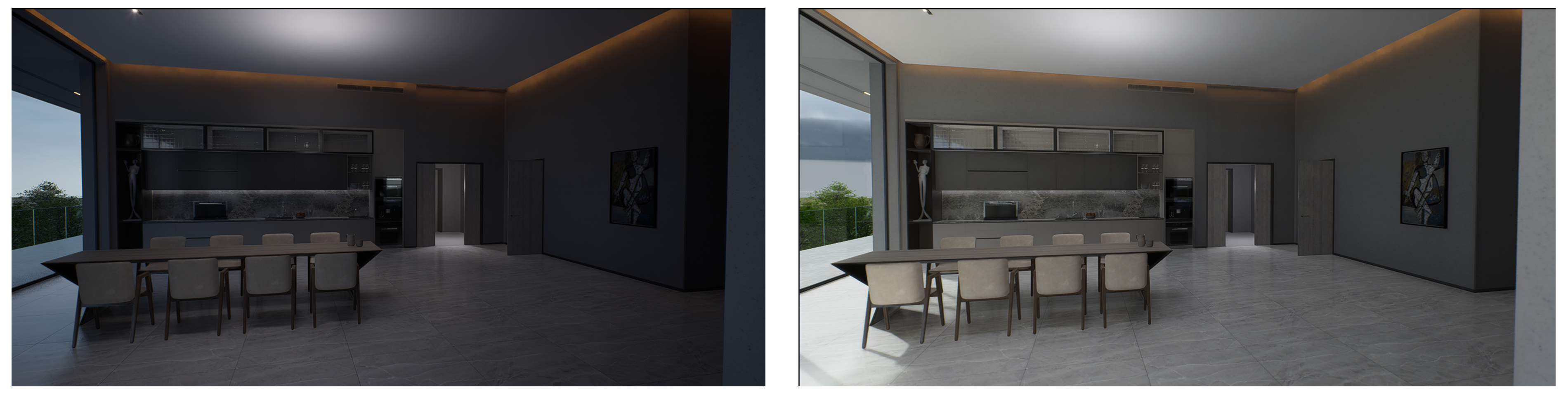
It supports users in uploading two different panoramas in the same location to achieve the effect of switching.
Users need to render two panoramas with different effects in the same location in the client (as shown in the images below, one before the lights are turned on and one after).

After uploading a panorama as a base state, click 'Edit multiple statuses' to open the upload pop up window.

After uploading another panorama, system will automatically create a state switcher for this location, allowing the user to switch between different displays.

Panorama Comment
Feature Description
Panorama Comment feature allows D5 account users to make real-time comments on online shared tour files, enhancing communication and collaboration within teams and with external customers.
Feature Use
2.1 Enable comment feature
Enable 'Allow Comment' in Global Settings of Panorama Editor (enabled by default).

When the comment function is enabled, a comment icon will appear in the upper right corner. Click to open the comment section.

2.2 Post comment
Users need to log in to their D5 accounts before they can post comments. Anonymous comments by visitors are not supported.
Comments support the following attachment types:
Text: Maximum 500 characters
Images: Maximum 20MB, supports screenshot pasting
Anchors:
- Spatial Tour: Anchors record XYZ coordinates and stay visible within range when transitioning between scenes.
- Panorama Tour: Anchors record XY coordinates and are only visible when the corresponding scene is selected.
Record the current scene when commenting. Switch between viewing comments for the current scene or all scenes in the tab bar above the comment section.
Supports @team members (only available for members within the team).

2.3 Reply comment
Click on a comment to go to the reply page where you can reply to it.
Replies to comments do not support adding anchors.


2.4 Anchor interaction
When clicking on an anchor in the panoramic on the left, the corresponding comment will be automatically selected and navigated to the reply page.
When clicking on the comment content, if the anchor is not in the current scene, the view will automatically switch to the scene where the anchor is located and navigate to the corresponding position.
Note: Anchors will only be displayed in the panoramic when the comment section is expanded.

2.5 Comment deletion permissions
Commenters can delete their own comments.
Project owners can delete all comments within their projects.
Team administrators can delete all comments across all projects.
Comment integration and management
Panoramic image comments are interconnected with cloud project comments. All panoramic image comments will be summarized and displayed in the 'Comment' tab of the cloud project, organized chronologically, without showing anchors.
Comments displayed in cloud projects support jumping back to the original virtual tour file.
Users commenting from external accounts will be marked as ‘external’ for distinction.

Email notification
Team members who are @-mentioned in comments will receive email notifications.
Last updated