> For the complete documentation index, see [llms.txt](https://docs.d5render.com/llms.txt). Markdown versions of documentation pages are available by appending `.md` to page URLs; this page is available as [Markdown](https://docs.d5render.com/user-guide/d5-virtual-tour/d5-showreel.md).
# D5 Showreel
All Panorama Tours, Spatial Tours, and XR Tours uploaded by individuals or their teams are stored in the D5 Showreel, where you can view, manage, edit, or share tour files with others.
### View and manage tour files
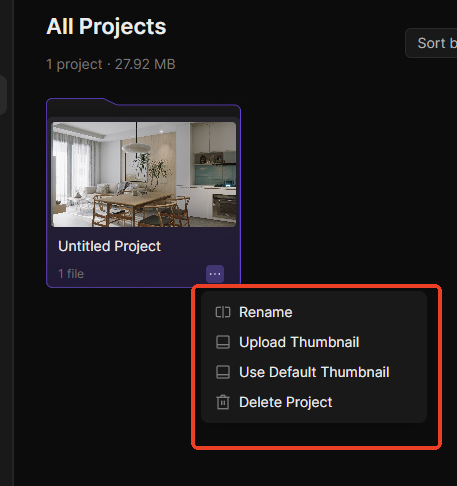
* View recently edited and saved roaming files in the \[Recents] tab on the left-side navigation pane or in the \[All Projects] tab. Each folder contains tours from one project. You can view the tour files after entering the folder.
* Click the thumbnail or menu button of the tour file to view, edit, delete, share, etc.
**Project management**
Click the project thumbnail to open the project folder, which contains the uploaded Panorama Tour, Spatial Tour, and XR Tour. Click the menu icon in the lower-right corner to rename, modify the thumbnail, or delete items.
**File Management**
| | |
| ----------------------------------------------------------------------------------------------------------------------------------------------------------------------------------------------------------------------------------------------------------------------------------------- | ----------------------------------------------------------------------------------------------------------------------------------------------------------------------------------------------------------------------------------------------------------------------------------------- |
|
|
|
Click the project thumbnail to view the file details and share the project in the upper right corner. It's possible to download PLY files of XR tours. Click the menu in the lower right corner to edit and delete items.
### Share tours
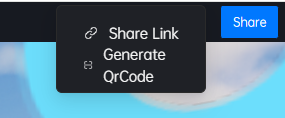
Click the Share button in the upper-right corner of the tour file. In the pop-up window, copy the link and share the tour with others for viewing.
Share in Myspace
Share in XR editor
Share in D5 Render tour editor
Share in the preview webpage
**Note:**
1. For XR tours, you must enter Edit mode and publish the tour before sharing.
2. You can enter Edit mode to disable the sharing function; any existing shared links will become inaccessible.
3. You can configure sharing settings such as password protection, link expiration time, and custom watermarks.
4. Panorama tours can be shared in two ways: via a link or a generated QR code poster.