> For the complete documentation index, see [llms.txt](https://docs.d5render.com/llms.txt). Markdown versions of documentation pages are available by appending `.md` to page URLs; this page is available as [Markdown](https://docs.d5render.com/user-guide/d5-virtual-tour/xr-tour/d5-xr-open-workflow.md).
# D5 XR Open Workflow
The D5's built-in online XR tour browsing service facilitates project sharing and collaborative communication. Beyond this, it offers more extensive scenarios for integration with other software. Within the user project list↓, users can download .ply source files for import into other software applications.
## D5 XR PLY File Export Workflow
1. Create an XR project in D5 Render, add camera templates (Sandwich Shooting Method).
Please refer to this guidance:
{% content-ref url="/pages/XafD49FSBLjMuoStyA6w" %}
[XR Tour](/user-guide/d5-virtual-tour/xr-tour.md)
{% endcontent-ref %}
After rendering is completed, upload the project to the **MySpace Cloud Project Management Platform** and submit it for **3D Gaussian Splatting (3D GS) training**.
2. After the training is completed, open the editor to adjust the PLY orientation.You can use the **Crop Editor** to trim the edges of the PLY file into a rectangular or circular shape.Once adjustments are complete, click **Save** and exit.
3. Return to the **MySpace Cloud Project Management Platform**, go to **Project → Download PLY File**, and download the PLY file to your local machine.
***
## Cesium & D5 XR
**Online Demo:**
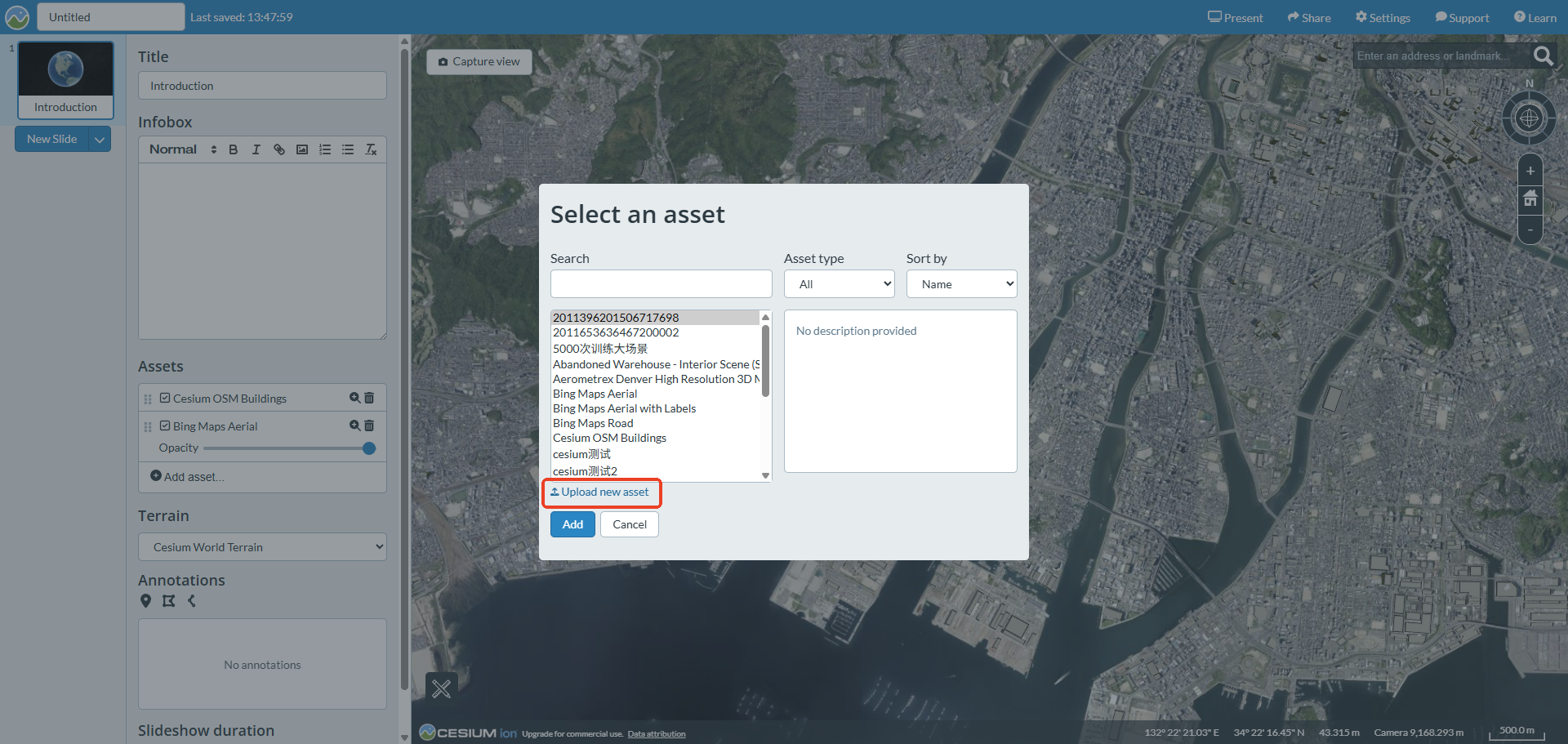
1. Open the [Cesium Ion](https://cesium.com/) platform and create a **Cesium Story** project.
2. Locate the project’s real-world geographic position and enable the data layers required for display.
3. Click **Upload**, select the D5 XR PLY file from your local machine, and upload it to Cesium Ion as a data source.
4. After the upload is completed, click **“Adjust Tileset Location”**, then click **“Click position”**.Click in the browser’s 3D viewport to place the PLY model at the current geographic location.
5. The added PLY file can be adjusted using **Gizmos** to fine-tune position and rotation so it matches the terrain.
6. Add multiple **slides** to showcase different viewing angles of the project, and share the completed Cesium Story with clients via a link.
***
## Spline & D5 XR & Webflow
**Online Demo:**
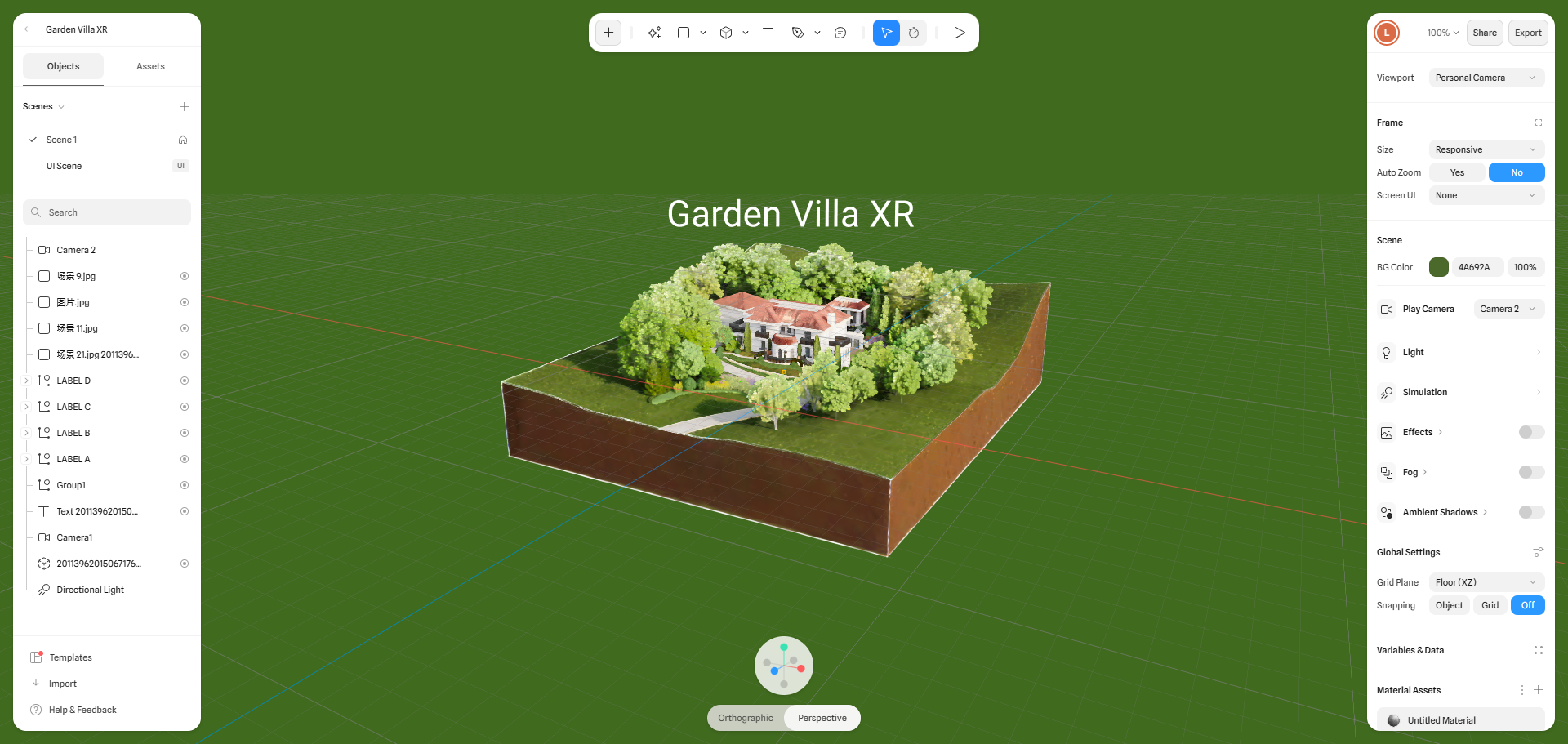
1. Open the [Spline](https://spline.design/) platform and create a new Spline project.
2. Upload the D5 XR PLY file from your local machine into the Spline project. Wait for the file to finish loading (large files may take some time).
3. After loading is complete, switch the view mode from **Orthographic** to **Perspective**.
4. Adjust the viewing angle as needed.You may refer to official [Spline tutorials](https://spline.design/tutorials) to add interactive events.
5. After editing is complete, you can either:
* Share the project directly via URL
* Embed it into your personal website using embed code.
6. If the website is built with **Webflow**, select the **Spline Scene** component in Elements, and paste the Spline scene’s **viewer link** into the component settings.
|  |  |
| ------------------------------------------------------------------------------------------------------------------------------------------------------------------------------------------------------------------- | ------------------------------------------------------------------------------------------------------------------------------------------------------------------------------------------------------------------- |
***
## Gemini & D5 XR
**Online Demo:**
1. Open [**Google AI St**udio](https://aistudio.google.com/apps). You can use a D5 XR online link or a locally exported PLY file to create a custom **3D digital twin** presentation application.
2. You may refer to the following **initial prompt example:**
{% hint style="warning" %}
I want to create a web-based 3D architectural digital twin dashboard.\
The overall interface layout should match the reference image “D5 Render XR Studio INTERFACE.png”.\
The dashboard consists of three core modules:
1. Top Navigation Bar\
The top bar includes:\
Left side: Company or product logo, Project name
Right side:A set of tab buttons; A drawer menu (expandable); The tab buttons contain three options:3D, Tour, Geo. When switching between tabs, the embedded iframe content inside the canvas must update synchronously according to the selected tab.
2. Sidebar (Project Information Panel)\
The sidebar displays project introduction content for the current project. The text content comes from a file named “Project.txt.”
The layout and typography should be generated based on the structure and meaning of the text. The UI style has a technological feel.
Numerical or data-driven sections may be visualized using charts or infographics
Under the heading “Project Overview”, add a carousel (slideshow) component:\
The carousel displays images from my upload files “1.jpg” to “4.jpg.”Images should support click-to-view in full-screen mode. Smooth transitions and modern interaction behavior are preferred
3. Iframe Canvas (Main Viewport)\
The main canvas area contains an embedded iframe.The iframe source should change dynamically based on the selected tab:
3D → [https://share.d5render.com/team-api/shortLink/SAKZC5](https://www.google.com/url?sa=E\&q=https%3A%2F%2Fshare.d5render.com%2Fteam-api%2FshortLink%2FSAKZC5)
Tour →[https://share.d5render.com/team-api/shortLink/C6TE3Q](https://www.google.com/url?sa=E\&q=https%3A%2F%2Fshare.d5render.com%2Fteam-api%2FshortLink%2FC6TE3Q)
Geo → [https://ion.cesium.com/stories/viewer/?id=6f16027d-ca89-491a-891c-8628002cc00c](https://www.google.com/url?sa=E\&q=https%3A%2F%2Fion.cesium.com%2Fstories%2Fviewer%2F%3Fid%3D6f16027d-ca89-491a-891c-8628002cc00c)
Only one iframe is visible at a time, and switching tabs updates the iframe source accordingly.
4. UI / Visual Style Requirements\
The UI design should follow current modern design trends. Clean layout, high readability, and user-friendly interactions
Appropriate use of: Subtle animations, CSS visual effects, Smooth transitions. The interface should feel professional, polished, and suitable for architectural visualization and digital twin presentation
{% endhint %}
3. After refining the UI through multiple conversation iterations and achieving a satisfactory result, deploy your project using **Google AI Studio**.